Self-service tool · No tax advisory/ case review · Results may vary – please verify
XML Flex Query Export Guide
Step-by-step guide to creating and exporting XML data files from Interactive Brokers, LYNX, CapTrader, etc.
Log in
Navigate
Create
Configure
Export
Log into Client Portal
Log into the Client Portal of Interactive Brokers, LYNX or CapTrader.
Navigate to Flex Queries
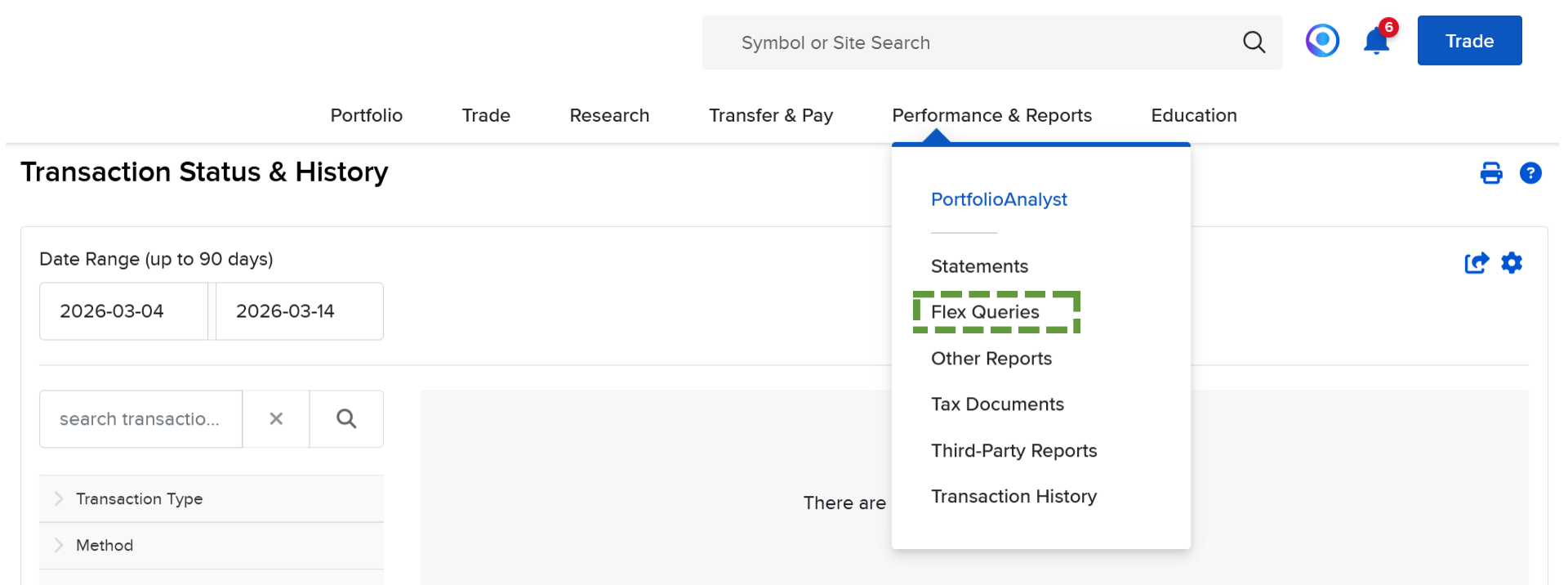
In the Client Portal, click Performance & Reports → Flex Queries .
Create Flex Query
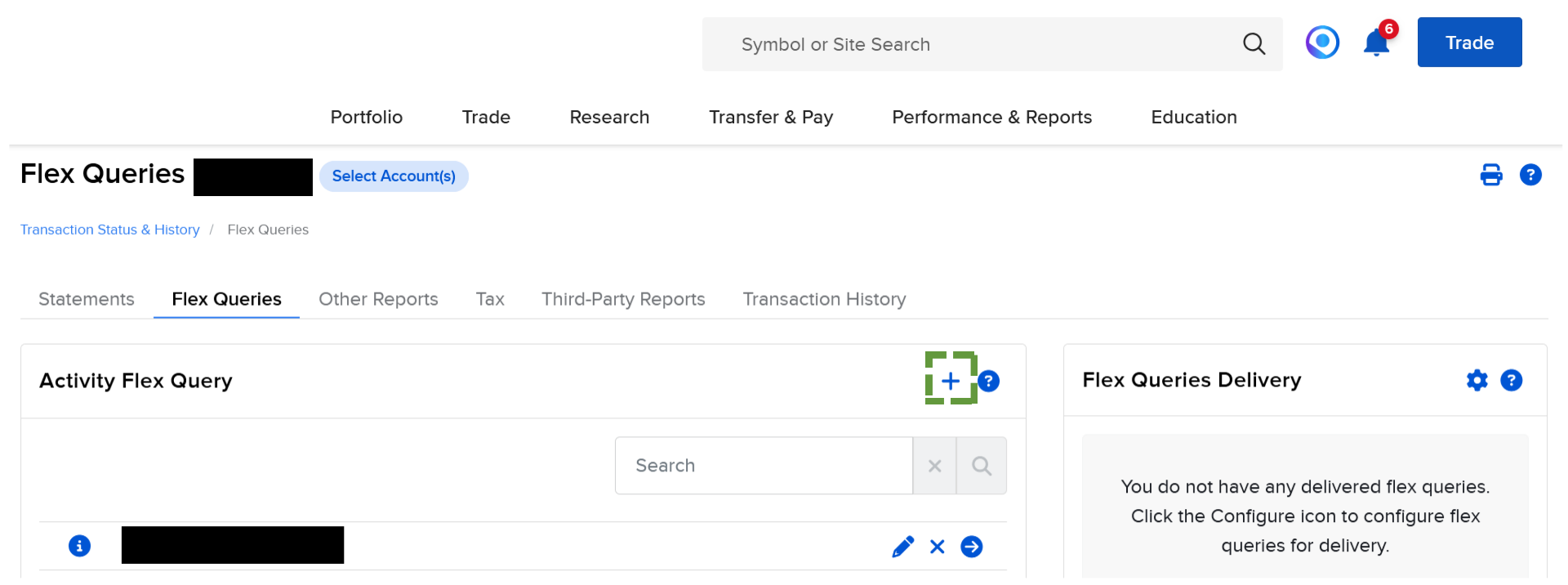
Click + to create a new Flex Query.
Configure Flex Query
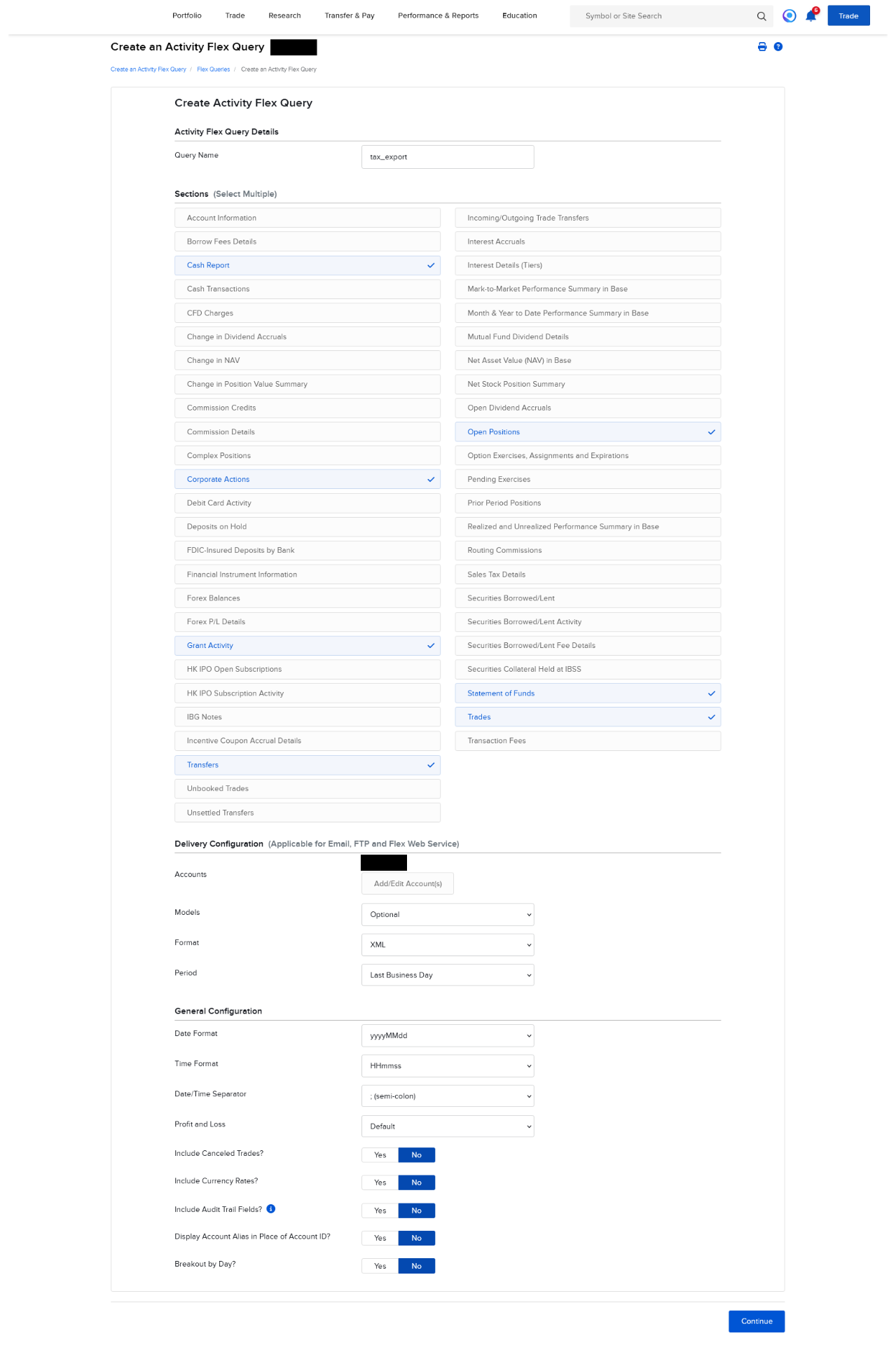
Assign Query Name
Assign a query name, e.g. tax_export
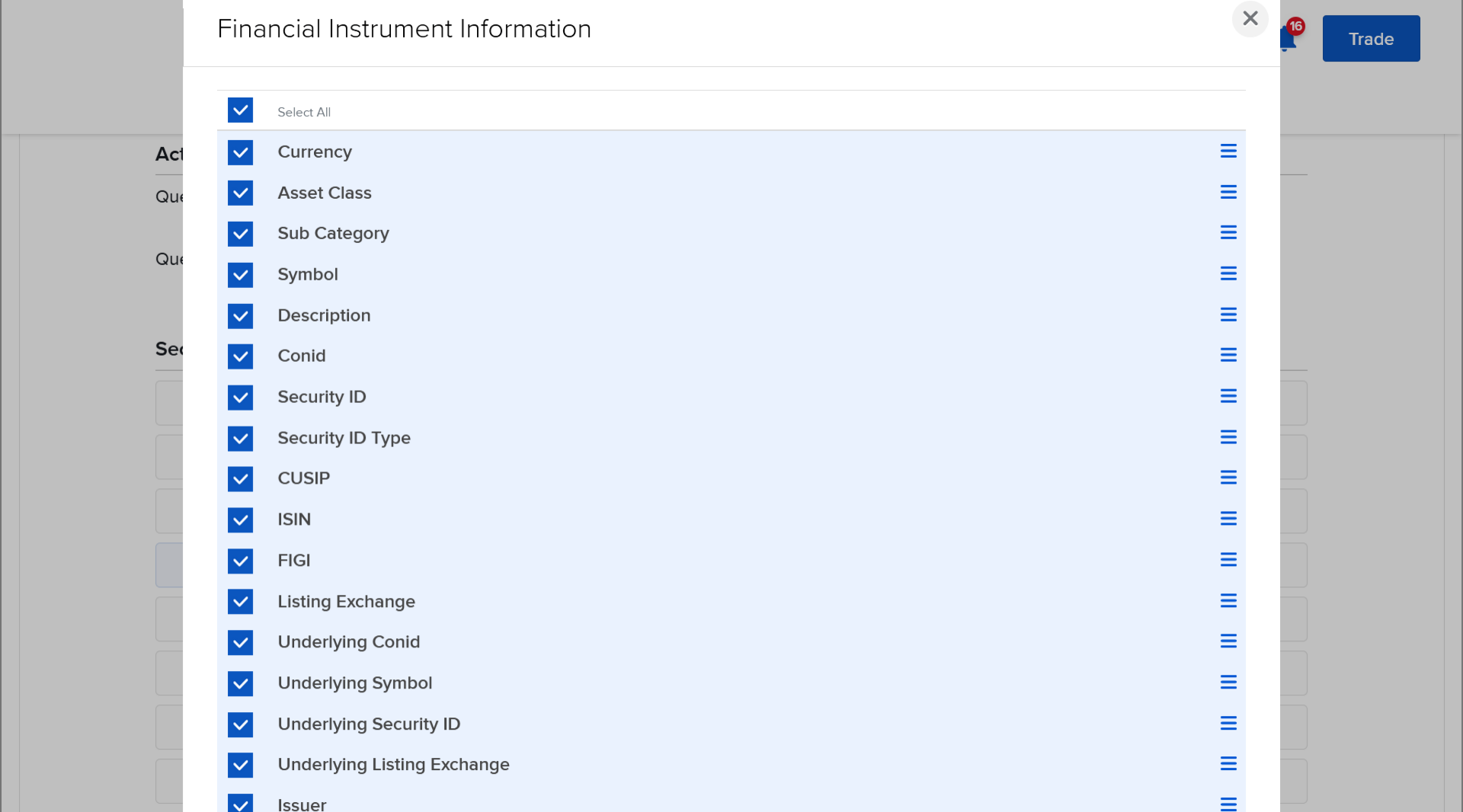
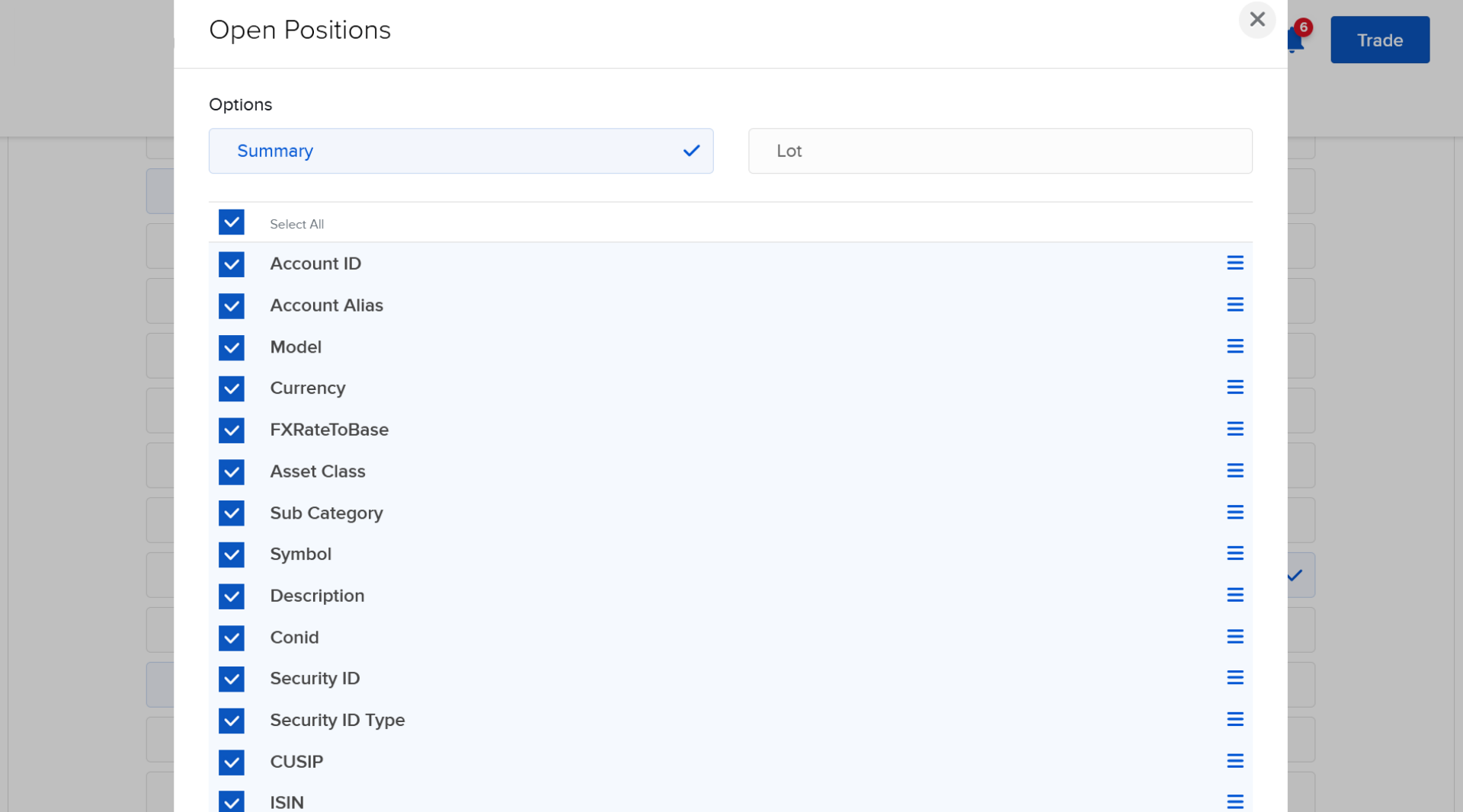
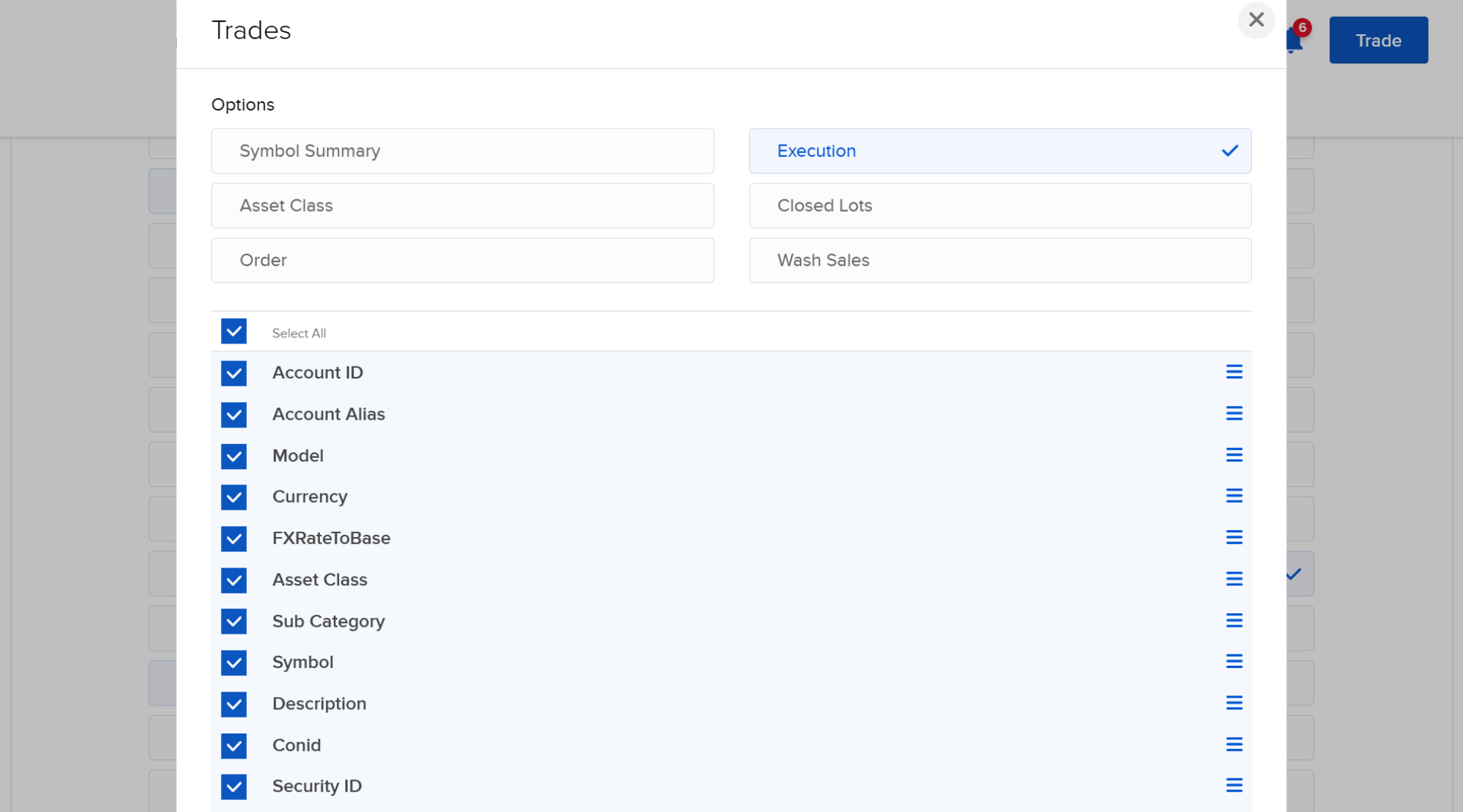
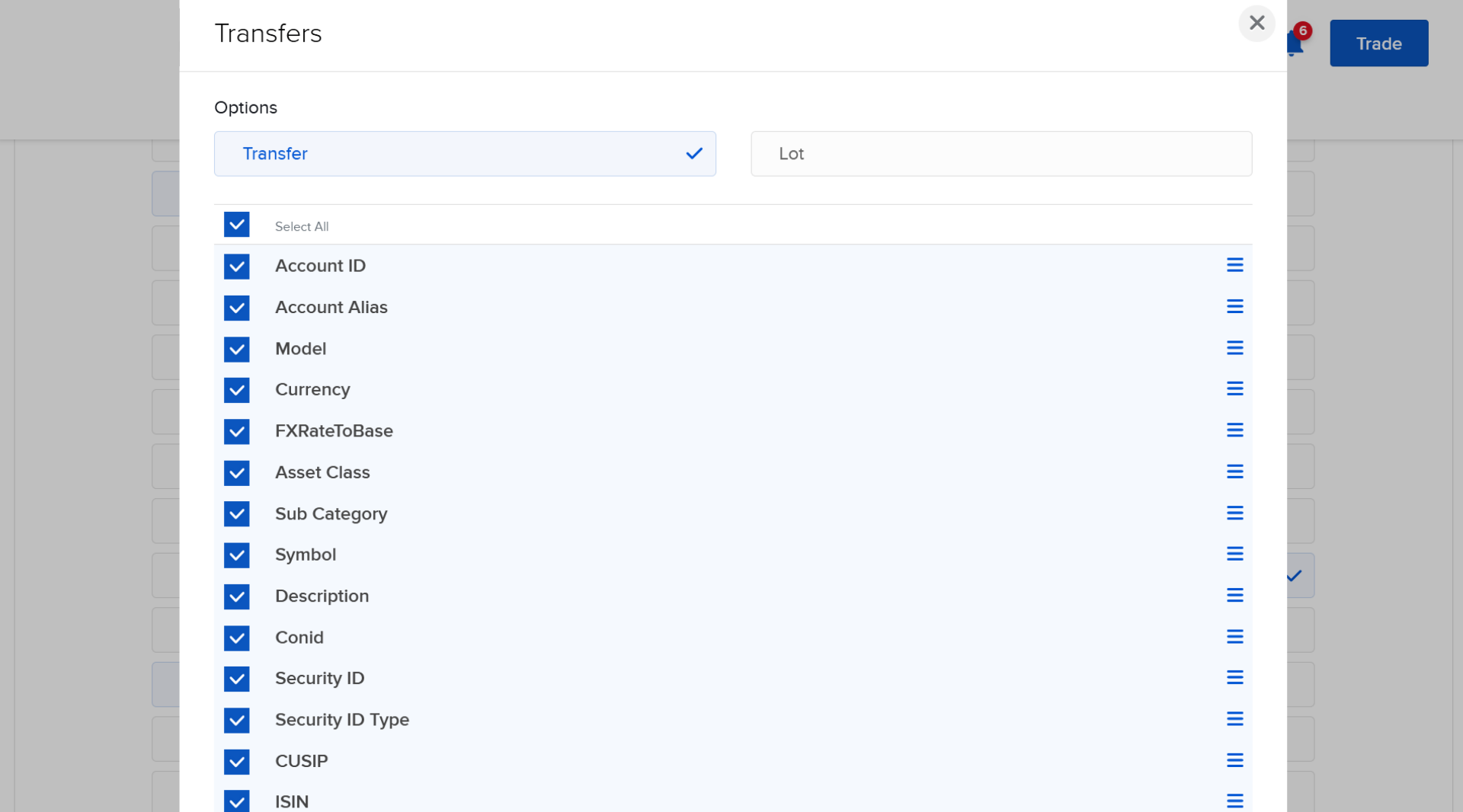
Select Sections
Select the following sections with the specified options. For each section: Select all details via "Select All", then click Save .
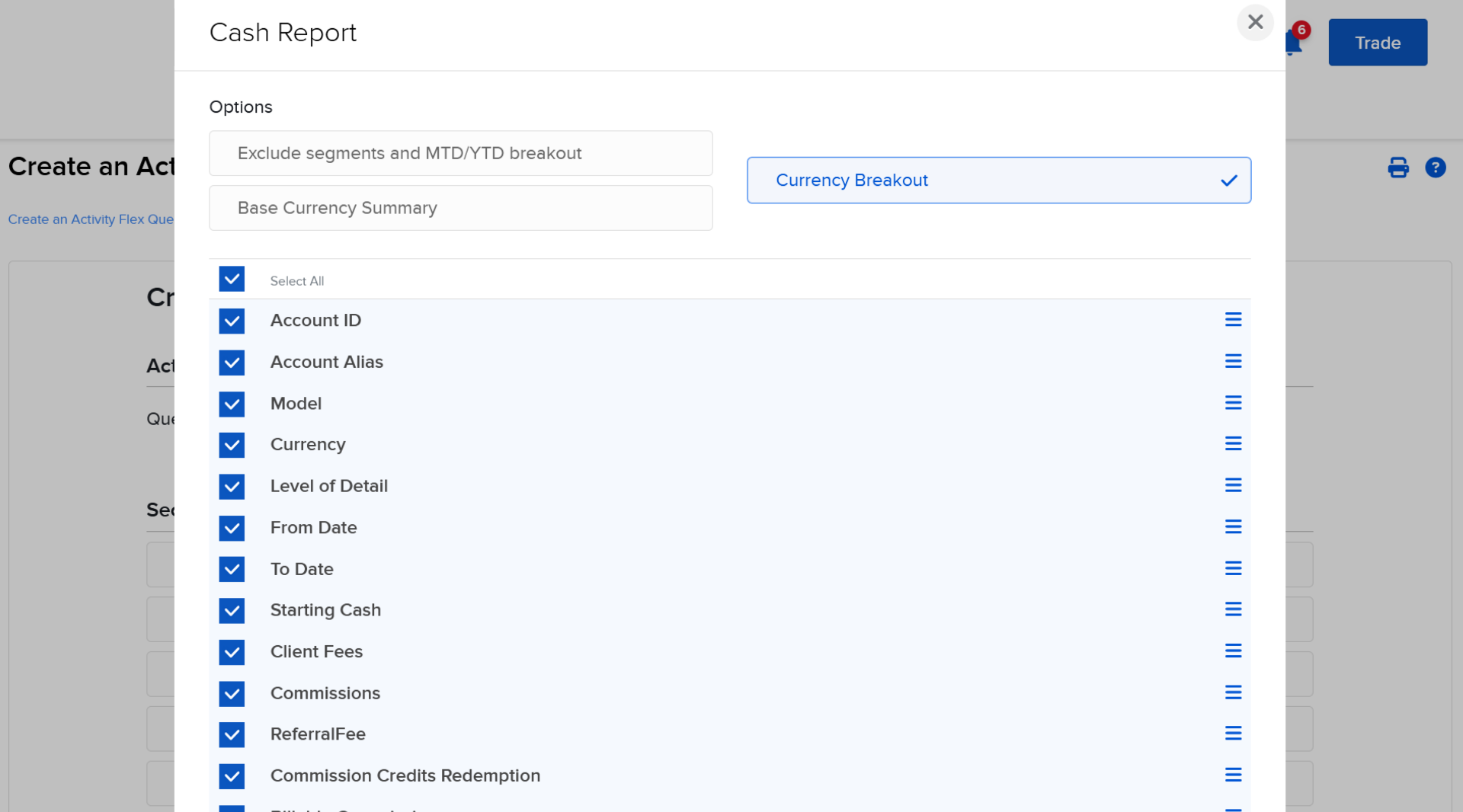
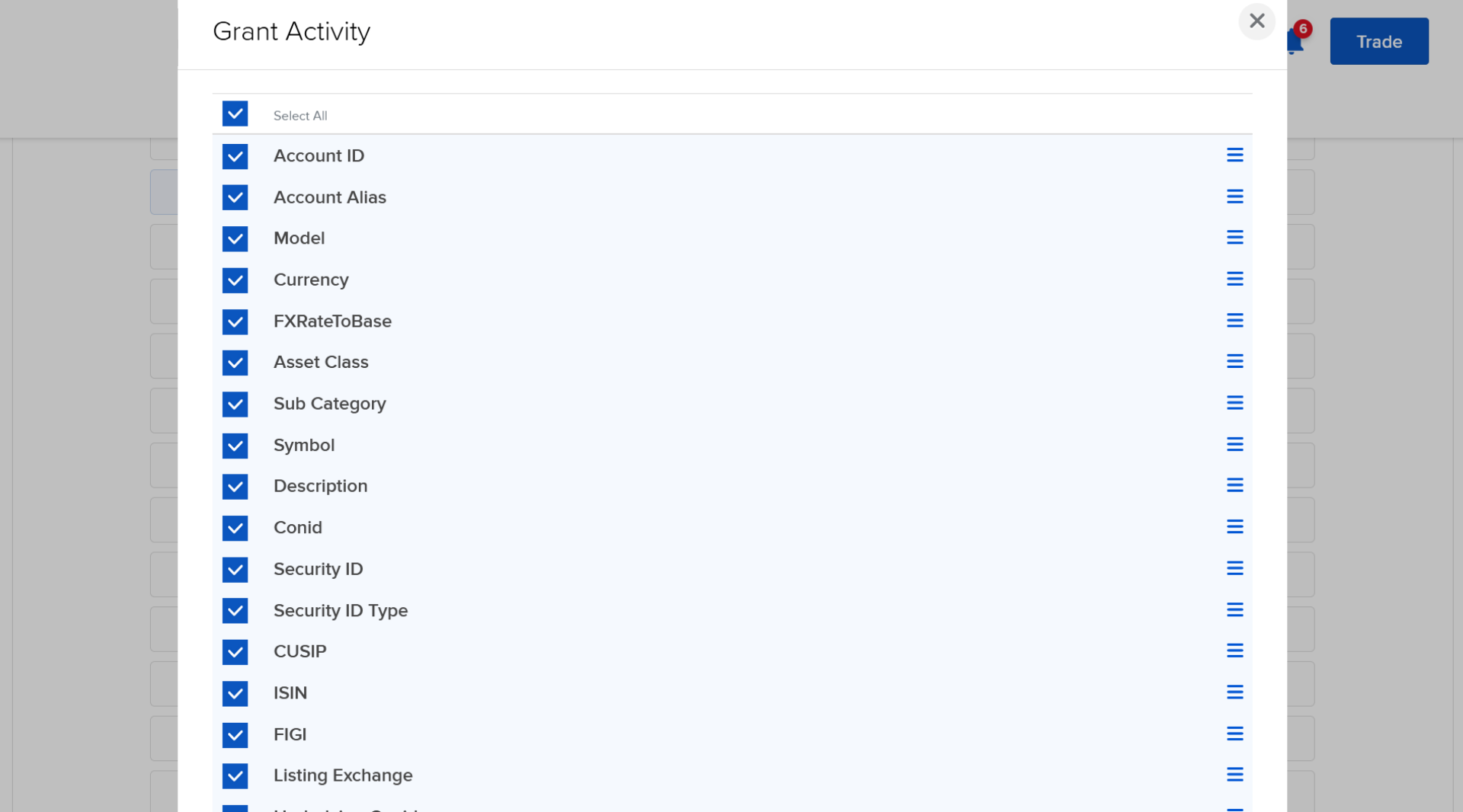
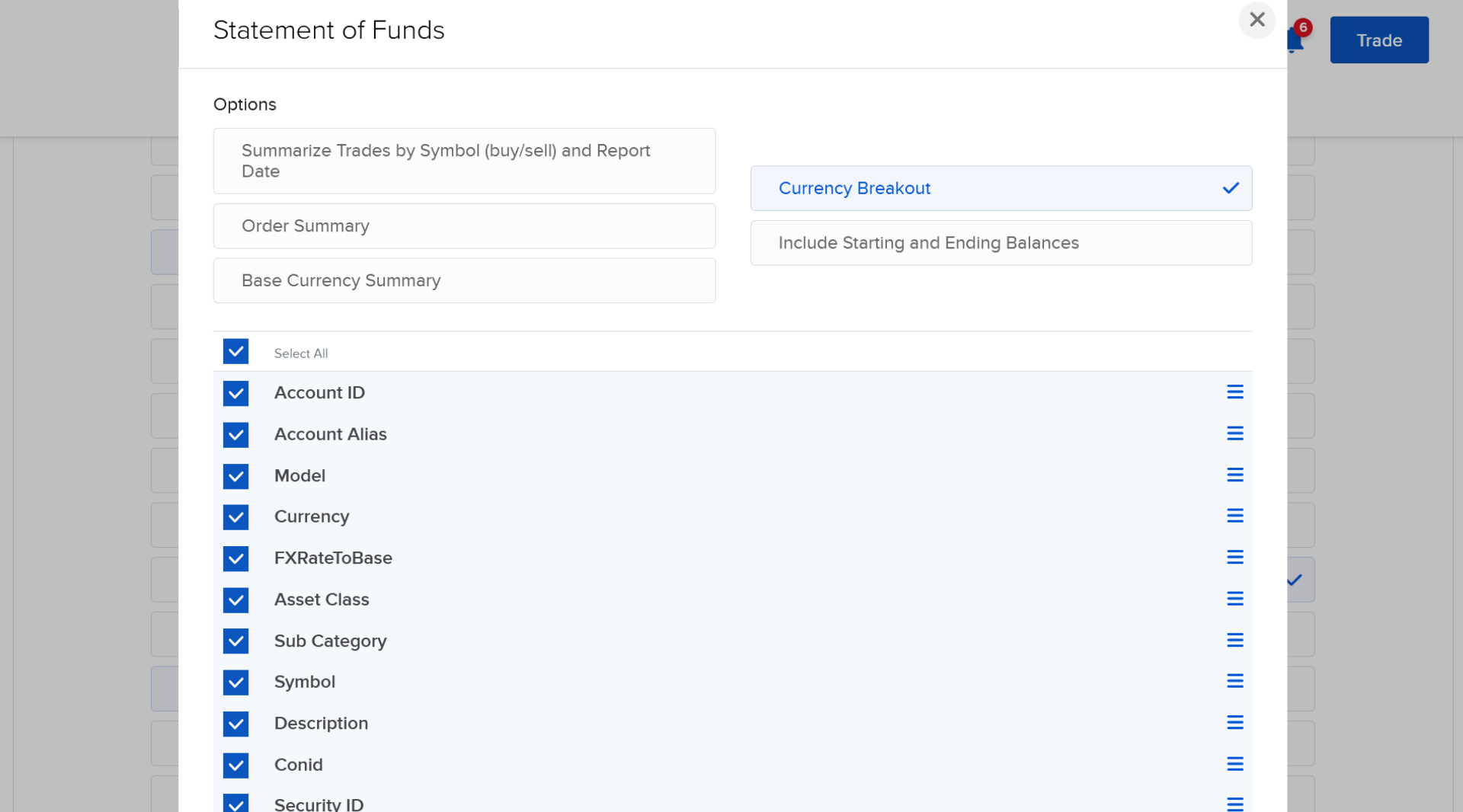
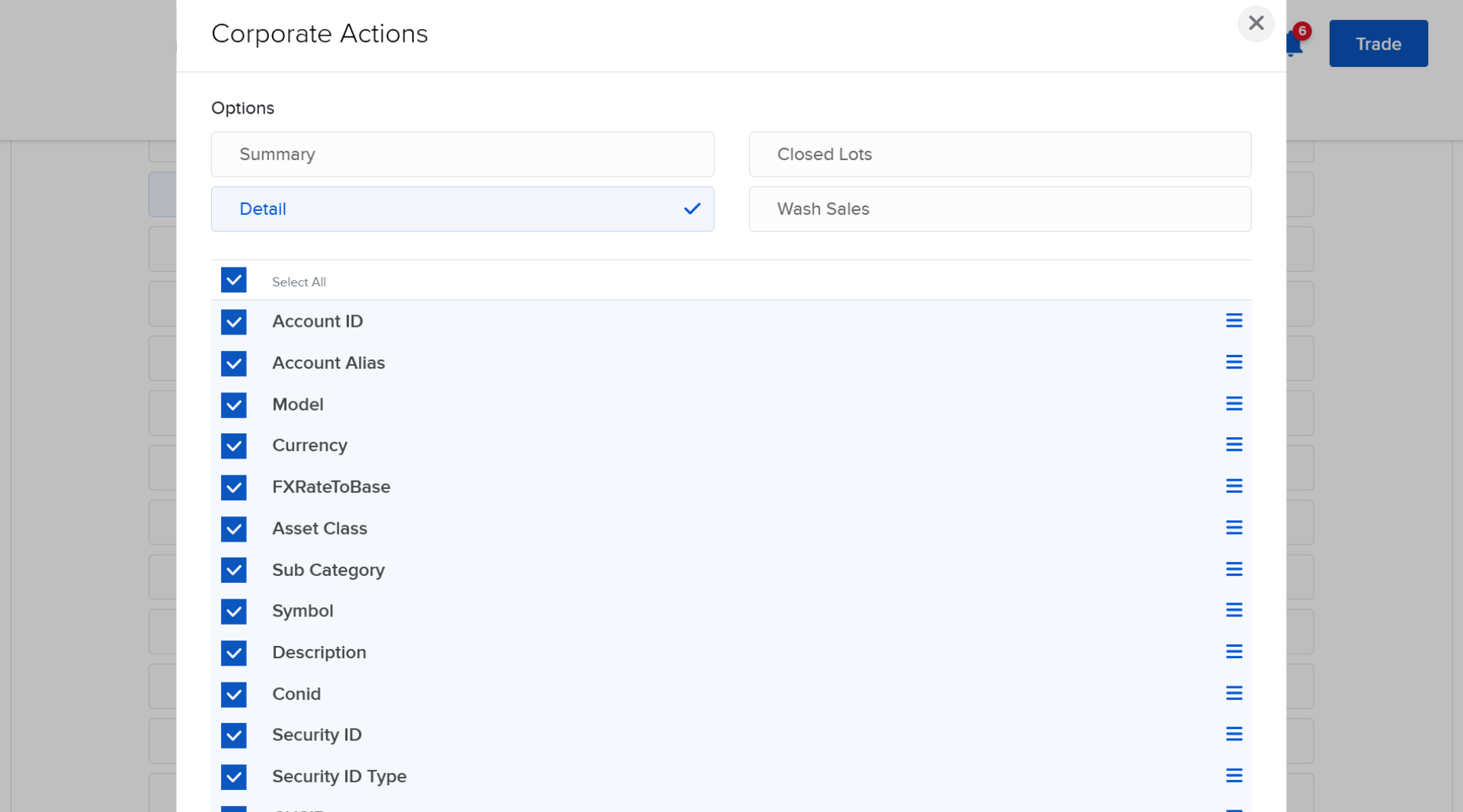
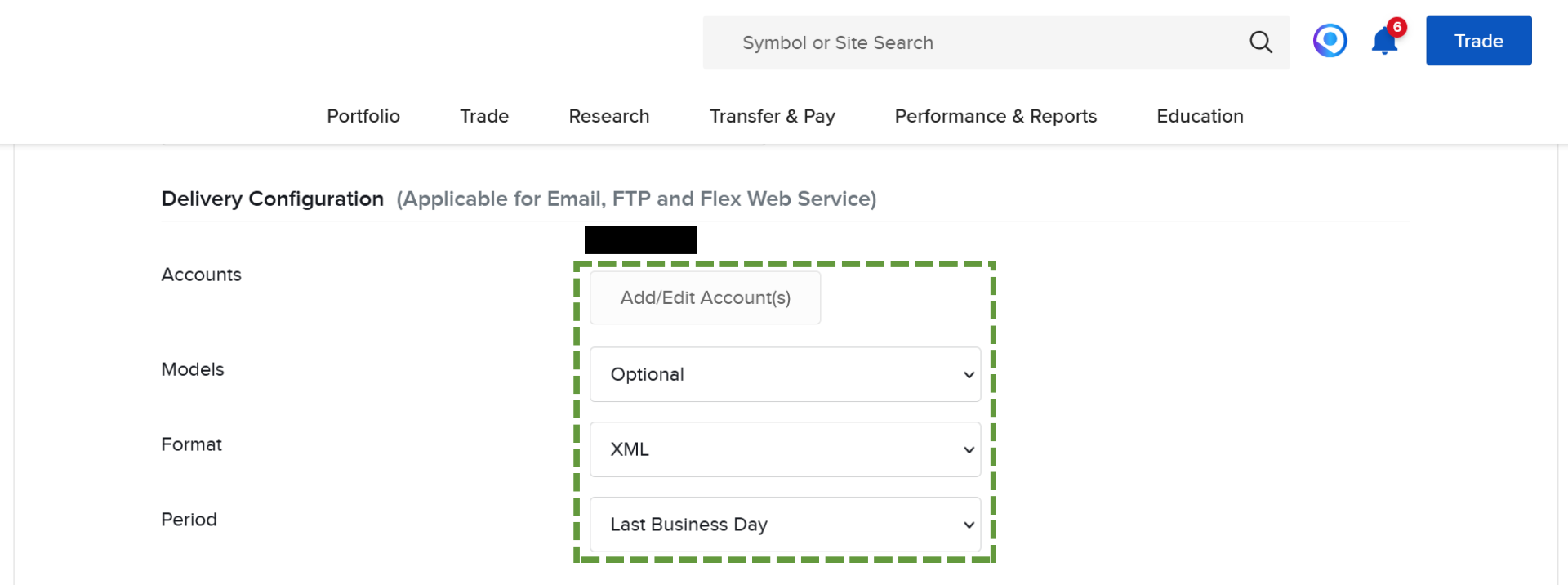
Delivery Configuration
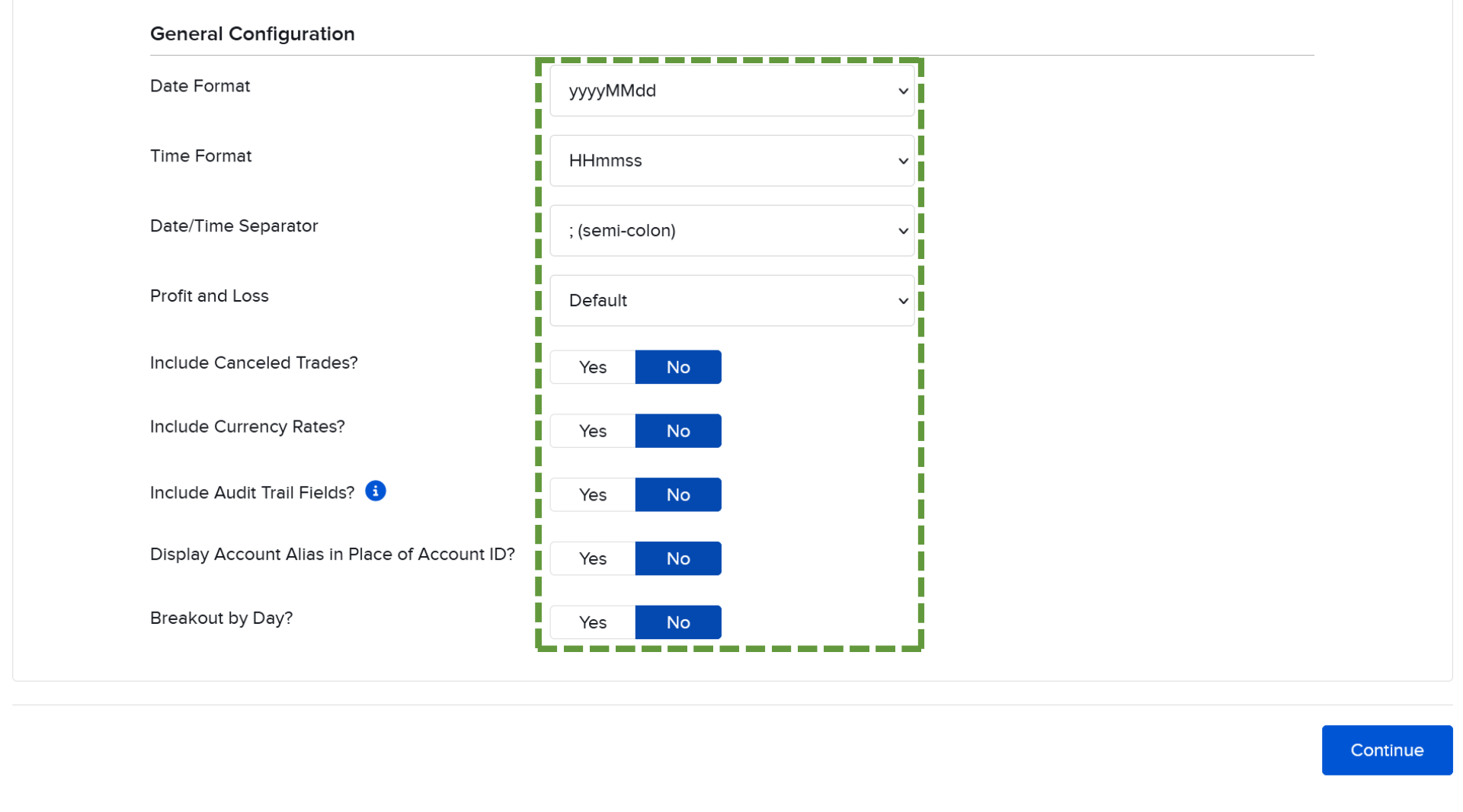
General Configuration
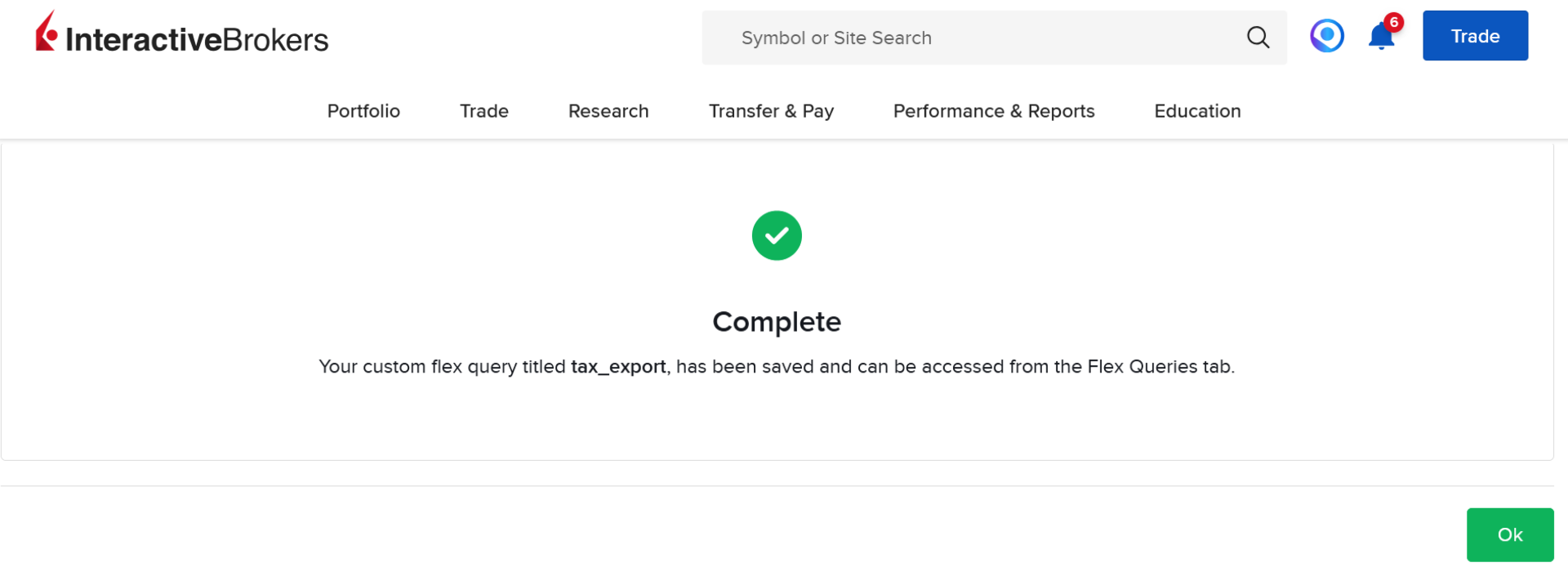
Finish
Click Continue, then Create and confirm with Ok.
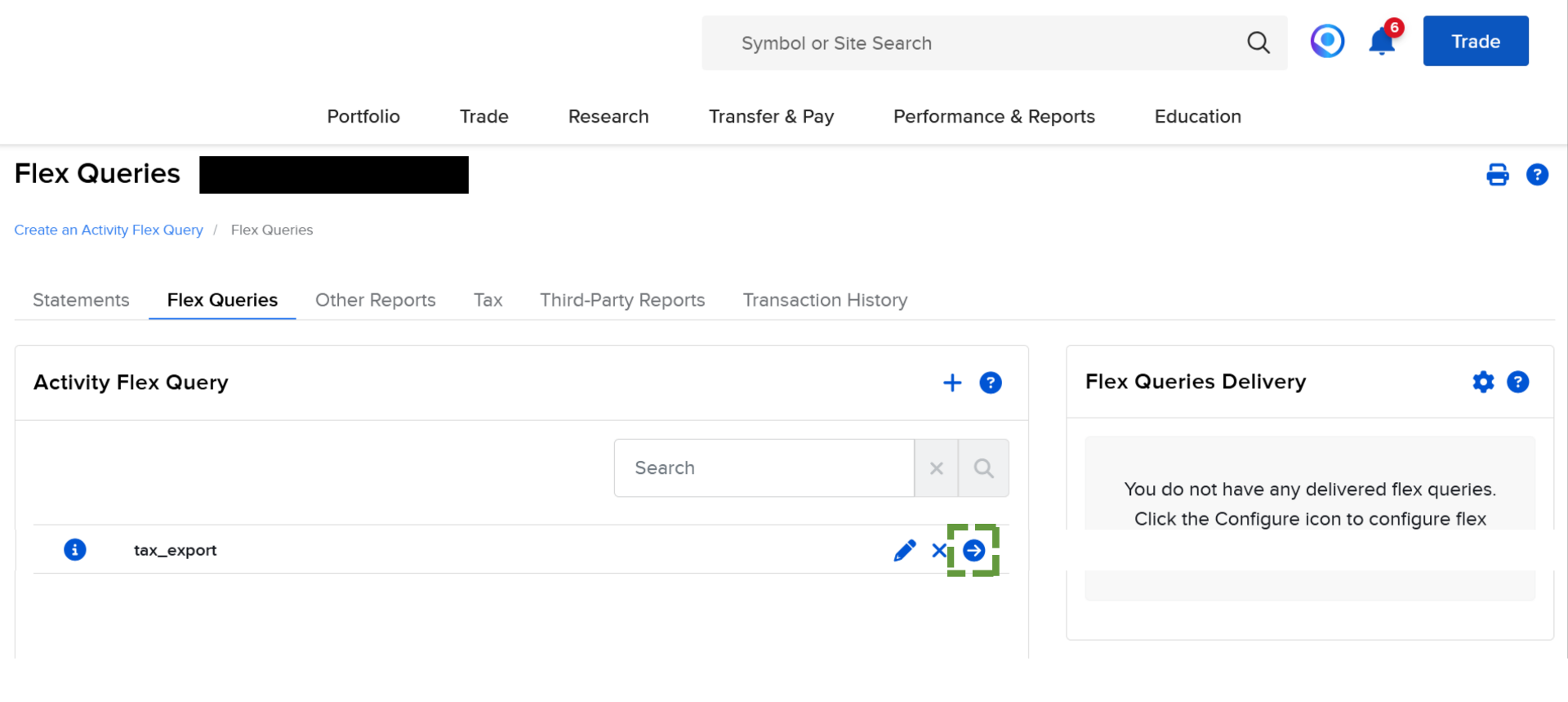
Start XML Export
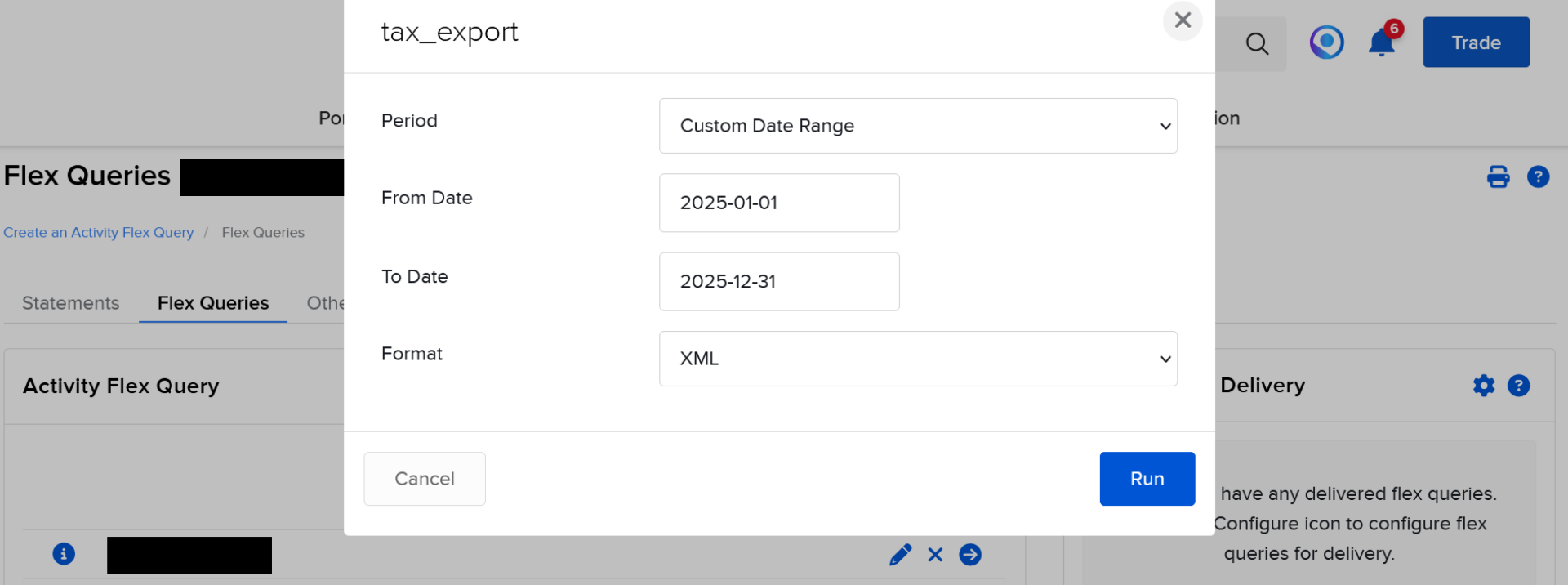
Click the Play icon to start the Flex Query.
Export Settings
Important Note
XML Flex Query exports are limited to a time window of one year. Therefore, an annual export (from Jan 1 - Dec 31 each) of account statements is required; historical periods are covered through multiple separate XML exports.
Example: Export#1: Mar 15, 2023 (account opening) - Dec 31, 2023; Export#2: Jan 1, 2024 - Dec 31, 2024; Export#3: Jan 1, 2025 - Dec 31, 2025
For FIFO to be applied correctly, no transaction from the history may be missing – the complete history from account opening is required.
Done!
Click Start and download the XML file. You can upload it directly to KapitalTax.
Ready for Your Report?
Also for LYNX & CapTrader
LYNX and CapTrader also use the Interactive Brokers platform. The steps to create the Flex Report are identical. Simply log into your respective account and follow the guide above.
Appendix: Flex Query Configuration Overview
This overview shows all required settings at a glance.